Import assets with
context intact
Batch import files, storyboards, and assets into Kumiho with custom tagging and lineage tracking. Split storyboard contact sheets into individual panels with preserved metadata—all from a simple desktop app.

Install from the command line
Prefer a one-liner? Pipe the installer straight from GitHub — it grabs the latest release for your OS.
# Windows · PowerShell
irm https://raw.githubusercontent.com/KumihoIO/kumiho-apps/main/install/ingest-studio.ps1 | iex# macOS / Linux
curl -fsSL https://raw.githubusercontent.com/KumihoIO/kumiho-apps/main/install/ingest-studio.sh | shManual Import Is a Time Sink
Uploading hundreds of files one-by-one is tedious and error-prone.
Storyboards require slicing panels, naming, and sequencing manually.
Metadata and lineage get lost when moving files between systems.
Smart ingestion, zero friction
Batch import with proper structure, metadata, and tracking.
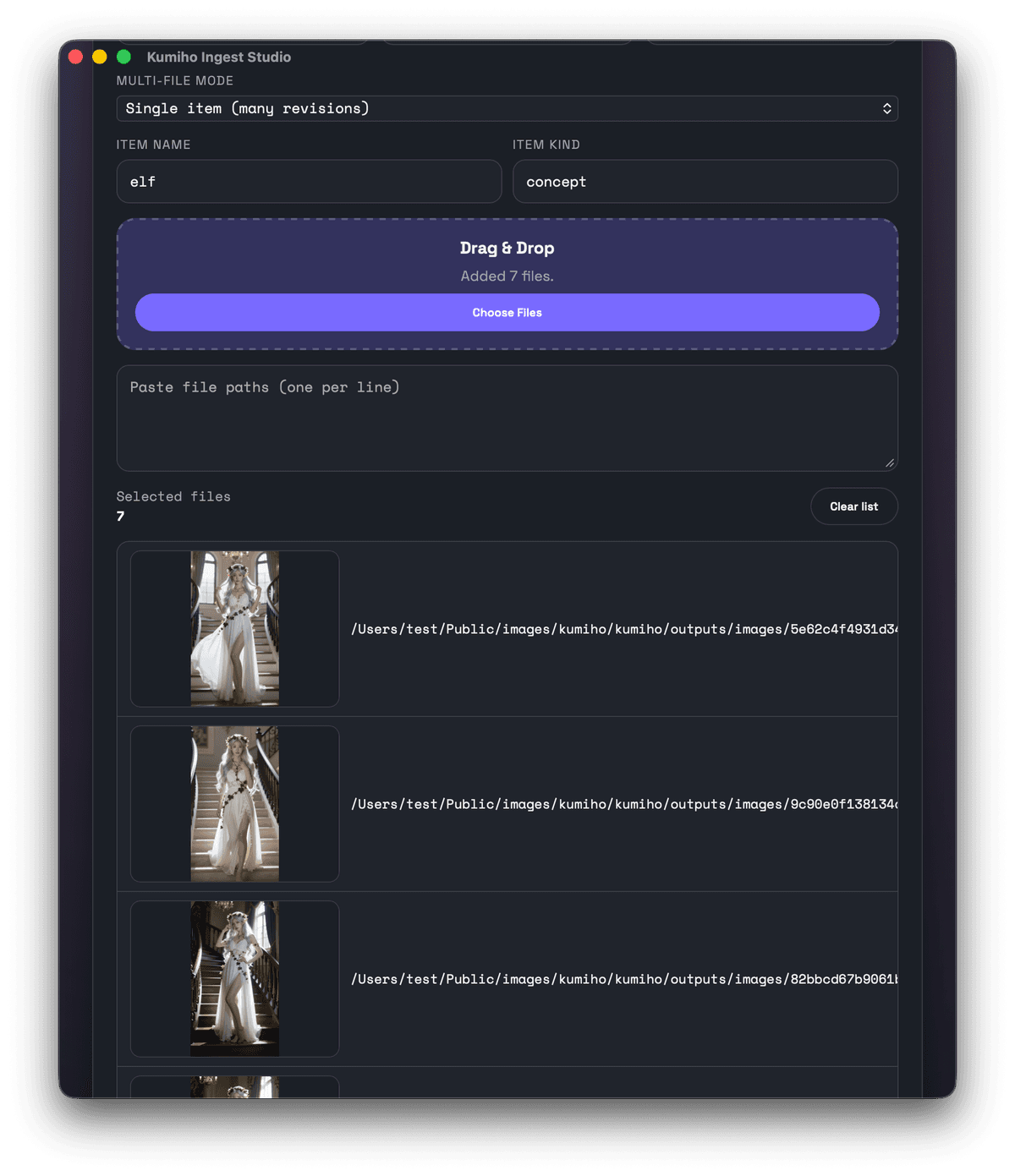
Batch Import
Select multiple files or folders and import them all at once. The app handles file organization, tagging, and artifact registration automatically.
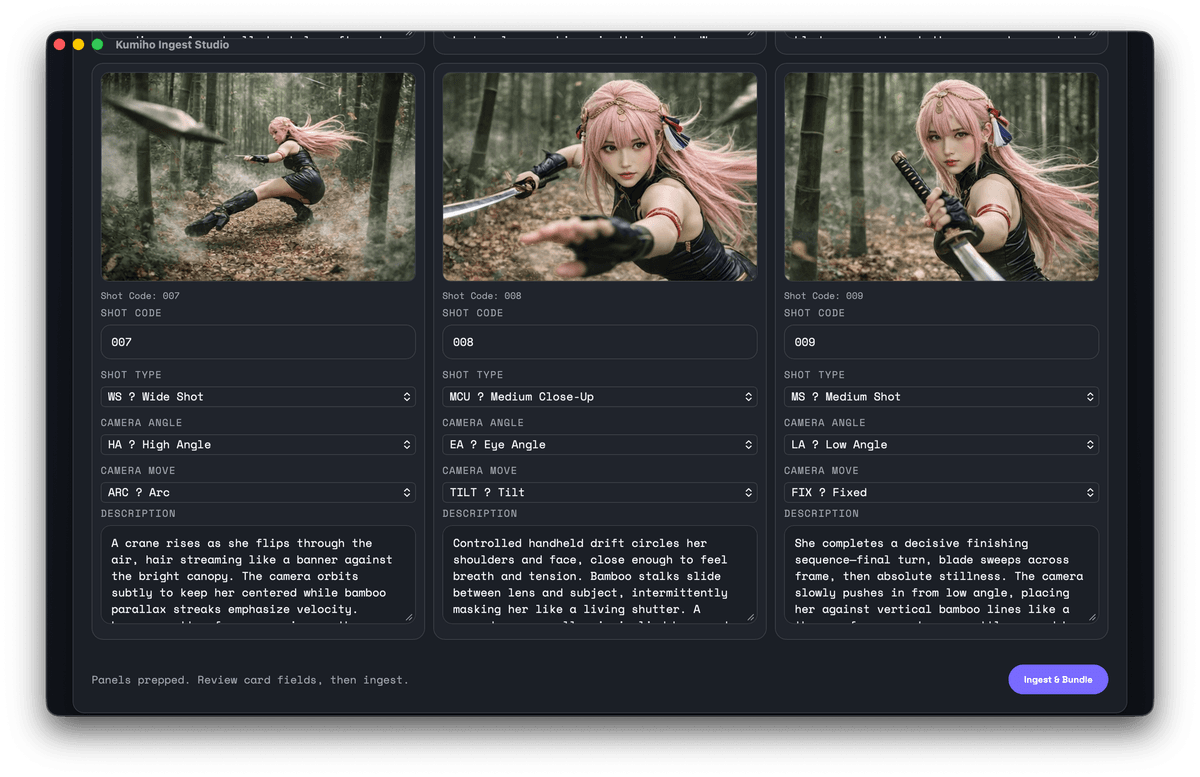
Storyboard Slicing
Import contact-sheet storyboards and automatically slice them into individual panels. Sequence order and metadata are preserved for each frame.
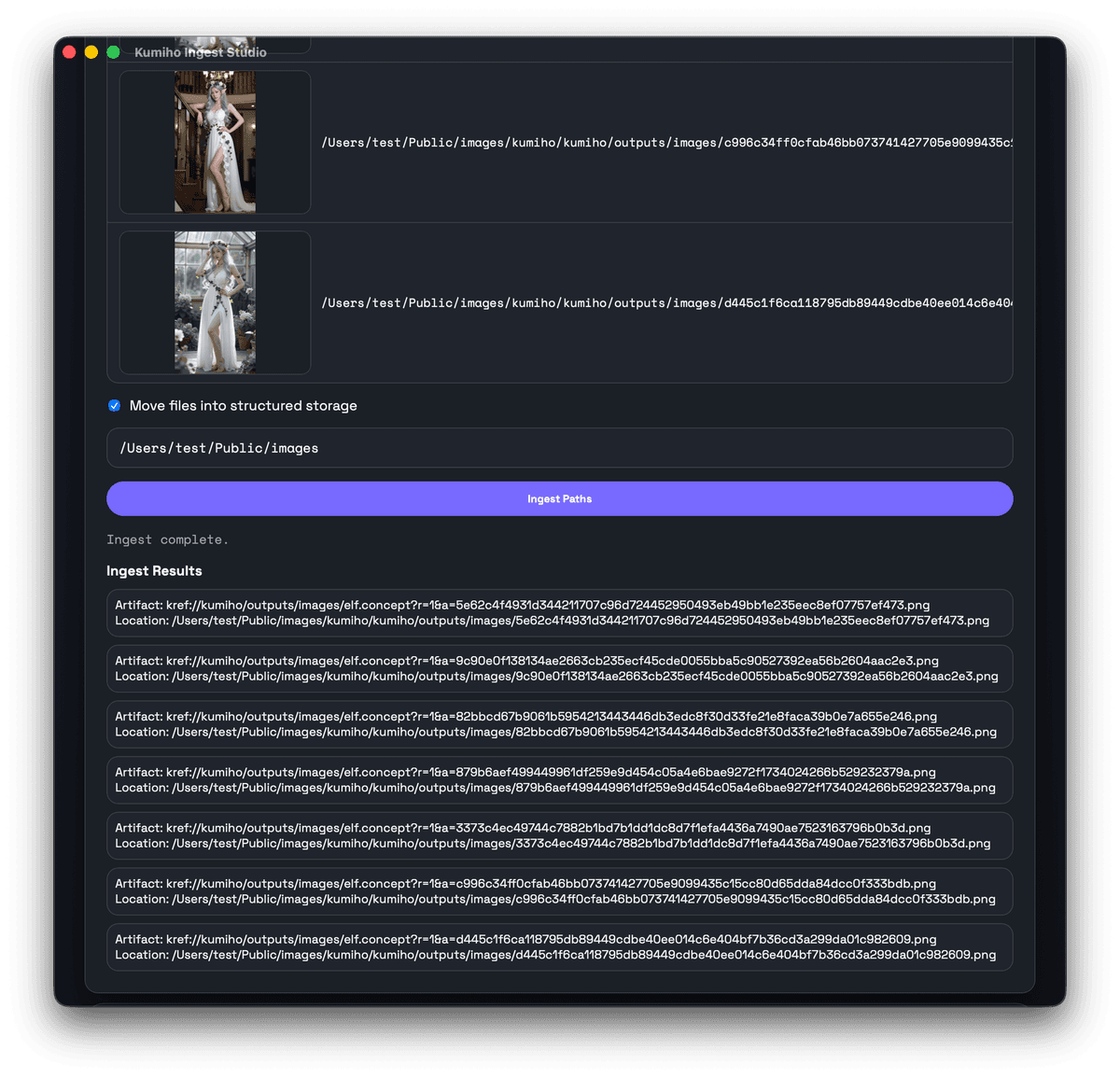
Smart File Organization
Optionally move files into a structured directory based on project, space, and sub-space names. Keep your library organized without manual effort.
How it works
Three simple steps to organized assets
Select Files or Folders
Pick individual files, entire folders, or storyboard contact sheets. The app supports images, videos, and other media formats.
Add Metadata & Tags
Assign custom tags, choose project/space/sub-space hierarchy, and let the app extract metadata automatically from EXIF, PNG chunks, or file properties.
Ingest & Track
Click ingest and the app registers all artifacts with Kumiho, optionally moves files to structured folders, and links them to your asset graph.
Your files,
your control
Kumiho Ingest Studio registers file paths as artifacts, meaning your files stay exactly where they are—no forced uploads, no vendor lock-in. You decide if and when files move to structured storage.
- No cloud storage fees for heavy media files
- Works with local drives, NAS, or cloud-synced folders
- Offline-friendly: metadata syncs when you're back online
Built for artists,
open for developers
Simple UI with powerful Python SDK and CLI under the hood
Desktop App Features
- Drag-and-drop file import
- Storyboard contact-sheet slicing
- Custom tag and metadata assignment
- Automatic file organization (optional)
- Secure authentication with OS keychain storage
- One-click SDK updates (Python venv managed)
Developer SDK Access
The desktop app is powered by the Kumiho Python SDK. You can use the same SDK to automate ingestion in your own scripts and workflows.
# Example Python SDK usage
import kumiho

# Get or create project and space
project = kumiho.get_project("my-project")
space = project.get_space("assets")

# Create or get item
item = space.create_item(
  item_name="character_concept",
  kind="image"
)

# Create a revision
revision = item.create_revision(
  description="Initial concept art"
)

# Register file artifact (local-first)
artifact = revision.create_artifact(
  name="png",
  location="/mnt/projects/assets/character_concept.png"
)